On Wednesday, August 19th, ComputerTalk hosted the first official session in its newly renamed webinar series, Slice of ice (formerly Lunch & Learn). The topic was Troubleshooting ice.
In this session, Client Support Function Owner, Robert Luciani, discussed addressing problems, common issues and resolutions for both users and supervisors, and troubleshooting tips and tricks. You can watch the recording here and read on for a summary.
Understanding the Problem
When facing a problem with ice, it is important to understand the problem so that it can be reported correctly to the help desk, leading to a shorter resolution time. To understand the problem:
First, determine the type of issue. Examples include connection, call quality, or access issues.
Next, identify what is affected by the issue. The issue may affect iceBar, iceManager, iceMonitor, iceReporting, or Citrix.
Finally, identify who is affected. The issue may be affecting the caller or it may be affecting one or more agents.
Common User Problems with iceBar
There are a few common error messages that may be encountered by users:
Error Reading Configuration
Error Connecting to ice Server
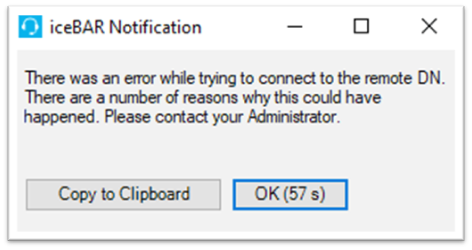
Error Connecting to the Remote DN
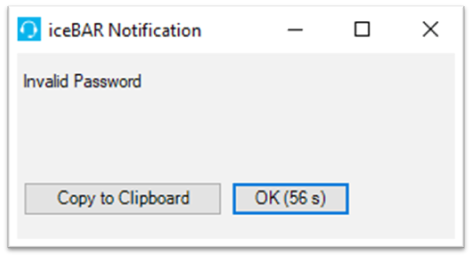
Invalid Password Error
Some of these user problems can be solved easily by following the steps described below. Solutions to the rest of the issues are fully explained in the session recording at the link above. However, if you do encounter any of these error messages and the problem persists after you have followed the recommended steps, contact your supervisor or administrator for help.
Error Connecting to the Remote DN
Shown below, this message means that the address or phone number that ice is trying to connect to cannot be reached.
If you encounter this message, click OK. Then go to the “About iceBar” section or the “Profile” section to validate that the phone number or sip address you are trying to connect with is correct. You can also check the endpoint by dialing it directly with a separate phone outside of iceBar. Information on how to validate the endpoint is provided below. After validating the information, try logging in again.
Invalid Password Error
Shown below, this message means the user received the password callback but an incorrect password was entered or the password entry timed out. Alternatively, the profile may be pointing to an old remote DN.
Check if the profile is pointing to an old remote DN: click OK then validate the sip address or phone number in the “About iceBar” or “Profile” section. You can also test the endpoint by dialing it from a different device. Information on validating the remote DN is provided below. After validating, try logging in again. If the remote DN is correct and you are still having problems with your password, you can contact your supervisor or administrator to confirm or reset your password.
How to Report an Issue
When reporting an issue, it is important to include all the necessary information so that you can save time on back and forth communications with the help desk and have your problem solved as quickly as possible. A proper ticket submission for a user-related issue should include the following information:
Agent ID & Remote DN (Connection Address) of the user. Note what phone device is being used by the agent.
Contact ID.
Time the issue occurred at.
Steps to reproduce the agent experience. Note whether the issue was experienced by the agent, the caller, or both.
Scope of the issue. Note any important information such as the number of agents impacted, the frequency, or the location of agents.
Where to find information for reporting issues
Agent ID
The Agent ID is a unique 4 digit number that identifies the user.
It can be found on the left side of the toolbar on the agent’s workstation. Alternatively, if you have access to the right-click menu, you can right-click on the toolbar and select “About iceBar”. A window will pop up that also contains this number.
Remote DN
The Remote DN is the connection address of the user. This may be a phone number or a sip address.
Similarly to the Agent ID, the Remote DN can be found on the left side of the agent’s toolbar or in the “About iceBar” window, accessible through the right-click menu on the toolbar.
Contact ID
A Contact ID is a unique number assigned to identify an interaction within ice.
There are multiple ways to find this number. Users are able to find the contact ID associated with past calls using the Contact History found on your toolbar. Note that if you open a call-related issue with the help desk, taking a screenshot of the Contact History window with the relevant interaction highlighted will allow the call to be traced more efficiently.
Supervisors can find this information in several locations in ice: iceJournal, iceReporting or iceMonitor for contacts that occurred in the same calendar day.
Tip: For voice-related issues, try changing your roaming DN address to a different phone device to determine whether it is an ice contact center problem or an agent workstation problem. To do this, access the profile window by clicking “Advanced” on the window where you’re prompted to enter your user ID and password upon launching iceBar. You can change your roaming DN address in the profile window.
Finding iceBar Logs, iceBar Configuration, and Skype for Business Logs
If you’ve received a configuration error and you need to delete the configuration, start by saving the iceBar logs.
To gather the iceBar logs, go to the “About iceBar” window.
You can save the logs and workstation information by clicking “Save Logs”. This action will create a zip folder that you can easily share with the technician working on your case.
Include your agent ID and name in the file name so that it is easily identifiable.
After saving the logs, try clearing your iceBar settings before relaunching the application. This step can clear many configuration errors including wrong buttons displaying, XML config errors, or invalid profile information.
To clear the settings, make sure you have closed your iceBar application, then open the File Explorer on your computer.
In the top bar of the File Explorer, type %appdata% and press Enter.
In this directory, delete the iceBar folder.
Next, re-launch the iceBar application.
Note: If your roaming DN/address field is not set through iceAdministrator, you will have to click Advanced in the login window and re-enter your phone number in that field.
If you’ve received a configuration error and you need to delete the configuration, start by saving the iceBar logs.
If your organization is using Skype for Business as your main agent voice platform, it is important to have Skype logging turned on, as it will help your IT team to investigate Skype client issues. You can follow these steps to make sure it is enabled and to find a user’s Skype logs.
Click on the settings icon within Skype for Business.
Under the General subheading on the Options window, make sure that the “Logging in Skype for Business” field shows “Full”.
To get a user’s Skype logs, go to the File Explorer.
Type %localappdata%\Microsoft\Office\16.0\Lync\ then click Enter.
In the resulting directory, right-click on the Tracing folder, then click Send To > Compressed (zipped) folder.
Common Supervisor Problems
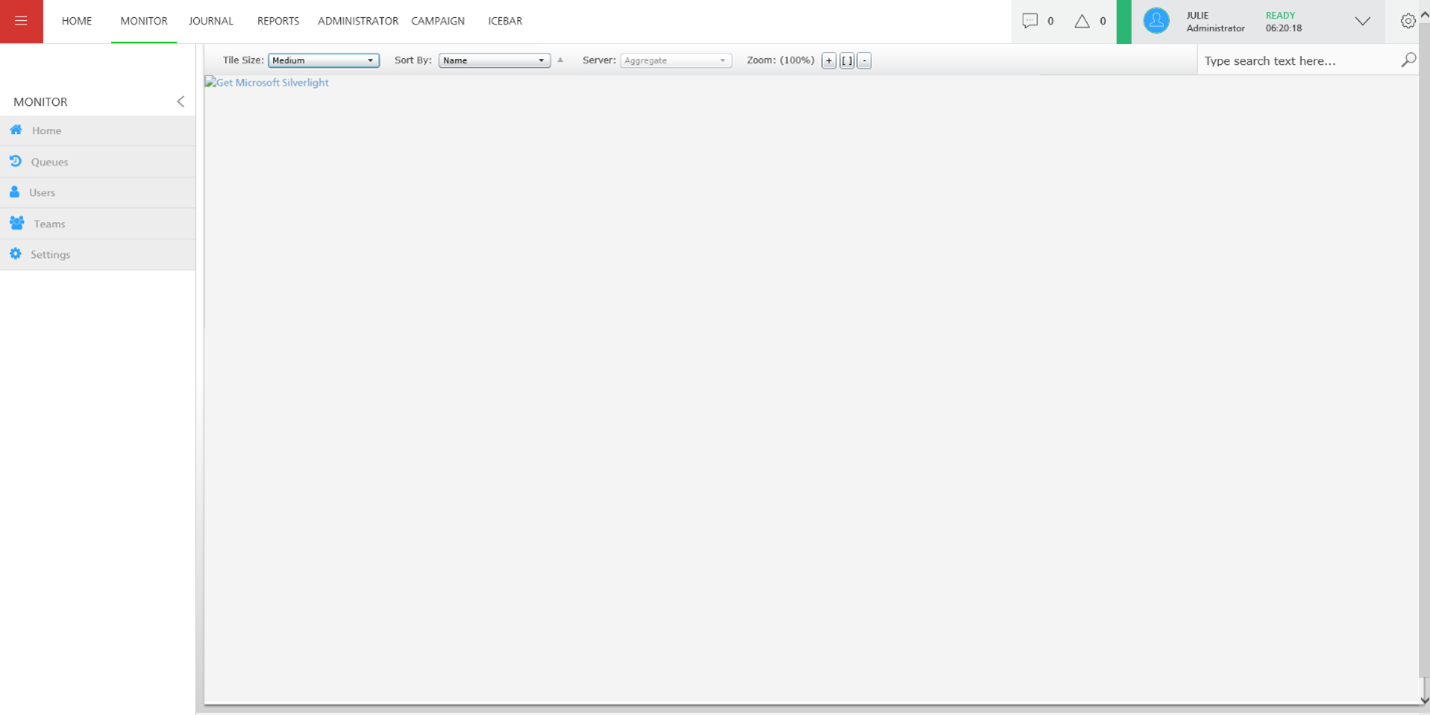
Issue displaying iceMonitor in the iceManager website.
While iceJournal and iceReporting may be used in any browser, iceMonitor requires the Silverlight plugin in Internet Explorer. Opening iceMonitor in another browser will cause it to display incorrectly, as shown above. You can easily solve this problem by switching your browser to Internet Explorer. Note that multi-browser compatibility for iceMonitor will be available in ice 11, which is currently being tested internally.
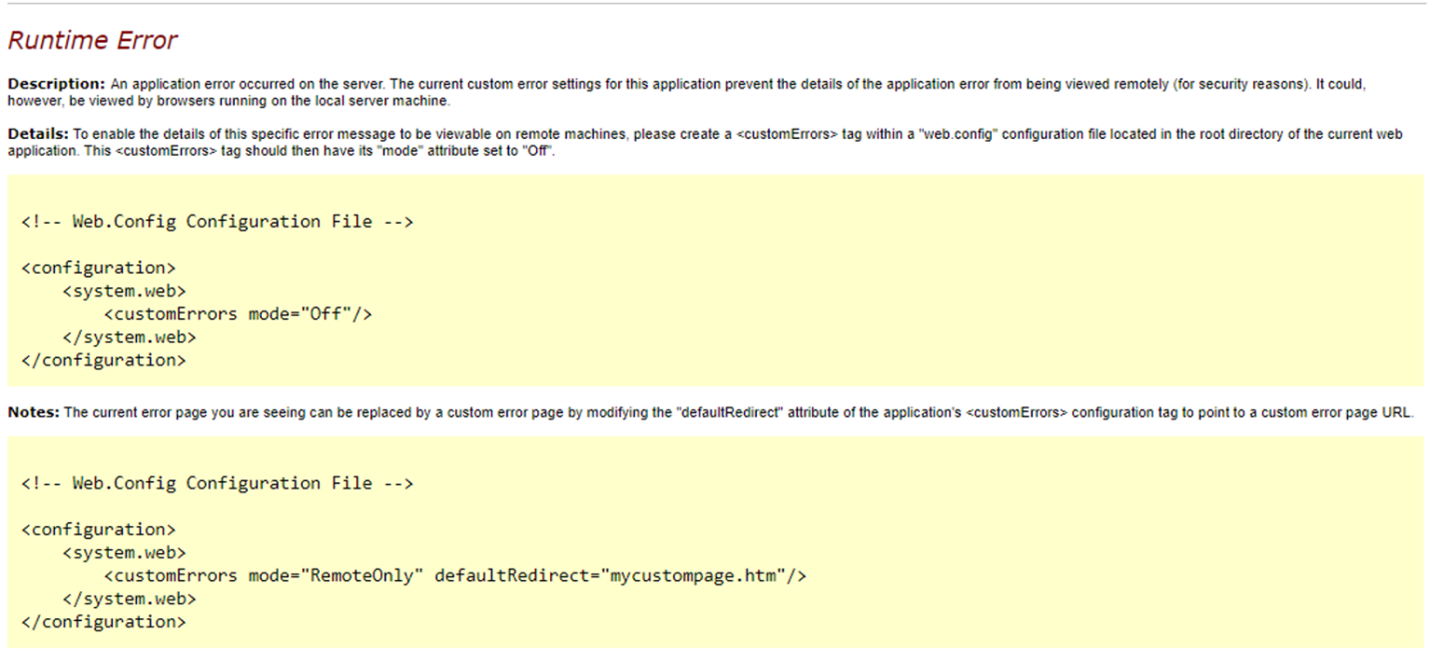
Maximum Contact Search Results – Runtime Error
Another common issue results from iceJournal’s maximum contact search results. There is a limit of 1000 search results. If you are searching for contacts in iceJournal and you cannot find all of the ones you’re looking for, it may be because there are more than 1000 contacts that meet your specified criteria. Narrow down the search criteria to solve this issue.
Another common issue for supervisors is a reporting issue caused by selecting too many individual options for a parameter.
You can easily avoid this problem in iceReporting by changing how you enter parameters. Instead of selecting large lists of individual users, queues, or teams, use the Begin and End fields to select a range. You can also use a mix of ranges and individual user IDs as long as the total number of entries does not exceed 15.
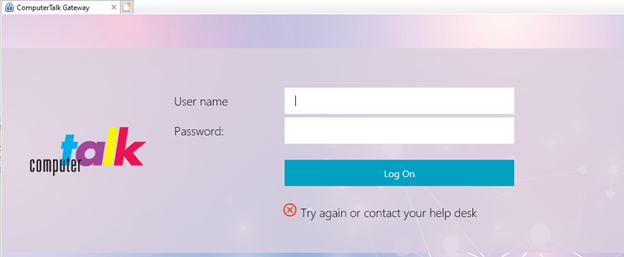
If you access iceAdministrator via Citrix, there are a couple of Citrix-specific issues you may face. The first is related to passwords.
Citrix Incorrect Issue
To reset your password, contact the ComputerTalk Help Desk with your Citrix user ID. This step will allow a temporary password to be set. Make sure your password contains a number and a capital letter to follow the password policy. If you get locked out of your account because you enter an invalid password too many times, you will have to wait one hour before resetting your password for security purposes.
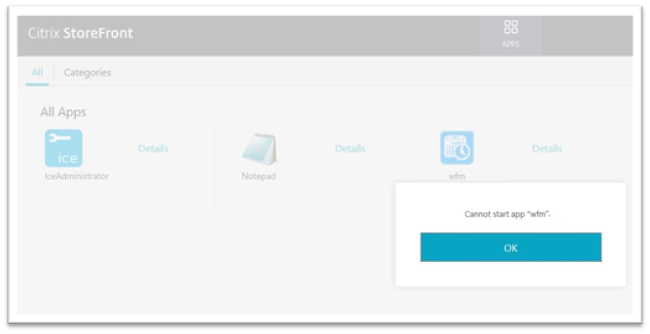
Citrix Cannot Start App
The second common Citrix problem, an error message when trying to launch iceAdministrator or Teleopti within Citrix, may be caused by the caching of the browser session.
If you encounter this issue, try launching a new browser window in private or incognito mode and return to the Citrix site.
If you try the above recommended solutions and your problem persists, or if you encounter an issue not covered here, you can reach out to ComputerTalk’s Technical Support team. For urgent issues, call 905-882-5500 (toll free 1-800-563-4822). For non-urgent issues, fill out a support web form or try a live webchat.
If you haven’t already, be sure to register for our next Slice of ice session, coming up on October 21st. It will cover queue prioritization, calculations, and properties in iceAdministrator. If you have any questions, feel free to reach out to your Account Manager or to the HowTo team.
Subscribe to our newsletter
Thank you for contacting ComputerTalk!
We will be in touch with you shortly. There is also a "chat" button in the bottom right corner of the website if you wish to speak to us immediately.
Oops! Something went wrong while submitting the form.
%20-%20Google%20Ads.png)