iceAI Studio vous donne un contrôle total sur les connaissances de vos agents IA et sur la façon dont ils dirigent les clients, favorisant ainsi des résolutions plus rapides et de meilleures expériences.
De la norme PCI-DSS à la certification SOC 2, le centre de contact ice est bâti sur un cadre de conformité qui saura satisfaire votre équipe de sécurité
For this week's blog, Robert Luciani, Client Support Function Owner at ComputerTalk, will guide us through several troubleshooting tips for both users and supervisors. First, we will address common inquiries regarding iceBar. Inquiries include resetting iceBar and error messages users might experience. Next, we will discuss how to access Microsoft Teams logs. These logs can provide insight into what may be causing issues for end-users in the Teams client.
Common Troubleshooting tips for iceBar
Here are some recent inquiries and common user error messages that users may encounter.
iceBar in an Unresponsive State
Error Reading Configuration
Error Connecting to iceServer
Error Connecting to the Remote DN
Invalid Password Error
The following steps will explain how to resolve the first three common troubleshooting tips with iceBar: iceBar in unresponsive state, error reading configuration, error connecting to iceServer. Solutions to the rest of the issues are explained in our previous blog, 'Slice of ice recap: Troubleshooting ice,' or you can watch a troubleshooting video here. However, if you still have further concerns, feel free to reach out to ComputerTalk's Technical Support team by web form, live webchat or phone at 1-800-563-4822 (toll-free).
iceBar in an Unresponsive State
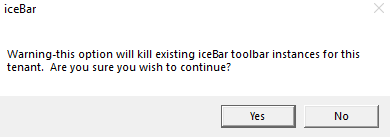
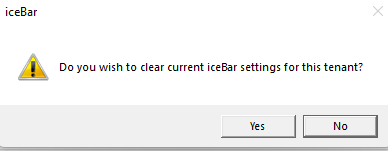
As with any application, there might be a time that you have to recalibrate your iceBar settings. For example, if you are experiencing a grayed out iceBar or an inability to change your agent state, consider resetting iceBar to its default settings to resolve configuration issues. To reset iceBar, complete the following steps:
Click the Windows start button and search for ‘iceBar restart’
Open the following application: ‘iceBar restart'
Click ‘Yes’ on the next two popups
ice will relaunch and reset the iceBar settings to the default settings.
Error Reading Configuration
This error message indicates an issue with your iceBar configuration, as shown below. This occurs when the iceBar profile gets corrupted and a user tries to access the application.
To fix this issue, complete the following steps:
Close the current application
Back up the logs for iceBar (If unsure, please refer to the previous blog on how to save iceBar logs).
Delete the local configuration
Relaunch your application
Error Connecting to iceServer
This error message appears when a user tries to access iceBar with an invalid User ID and Password, as shown below. This occurs when the User ID and password you are connecting with do not match.
To fix this issue, complete the following steps:
Click 'OK' from the iceBar notification.
Re-enter the password to try connecting once again.
If the same notification prompts again, contact your supervisor or administrator to retrieve the correct password.
Alternatively, your supervisor or administrator can reset the password on iceAdminstrator.
Accessing Microsoft Teams Logs
Microsoft Teams logs are an essential tool to troubleshoot complex problems. These logs may be required to determine the source of the Teams Client failure. Examples of these include dropped calls, glitches, or unknown errors that occur on Teams. Depending on your situation, here is how to generate Microsoft Teams media logs and Microsoft Teams logs.
Microsoft Teams Media logs
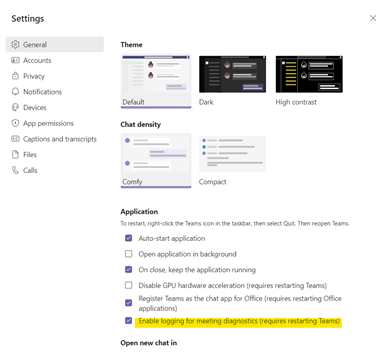
Media logs contain diagnostic data on audio, video, and screen sharing in Teams meetings. They are required for support cases that are linked to call-related issues. Media logging is turned off by default. To log diagnostic data for Teams meetings, users must turn on the option in the Teams application. The following steps show how to turn on media logs.
Go to Settings > General, select the Enable logging for meeting diagnostics (requires restarting Teams) check box, restart Teams, and reproduce the issue.
Generate a log file using the shortcut for your operating system:
Microsoft Teams log for Windows 10: Ctrl + Alt + Shift + 1
Microsoft Teams logs for macOS: Option + Command + Shift+1
Microsoft Teams logs for Linux: Ctrl + Alt + Shift + 1
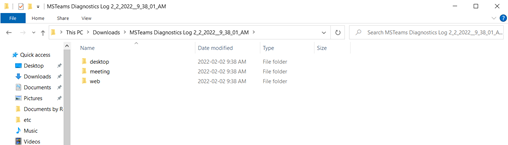
Open File in Downloads Folder. Click Meeting > Media-Stack
Microsoft Teams Logs
Teams logs contain log data that occurs between the desktop client and the browser. These logs can be read using any text-based editor. Microsoft Teams logs can be generated in two different ways, the shortcut method, or the desktop method.
Shortcut Method
Using the shortcut method, access Teams logs by completing the following steps:
Open Microsoft Teams.
Generate a log file using the shortcut for your operating system:
Microsoft Teams log for Windows 10: Ctrl + Alt + Shift + 1
Microsoft Teams logs for macOS: Option + Command + Shift+1
Microsoft Teams logs for Linux: Ctrl + Alt + Shift + 1
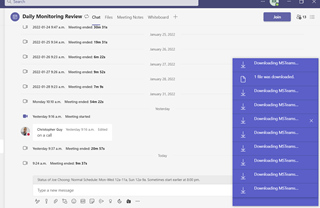
The file will be saved to the ‘Downloads’ folder, for which you will receive a desktop notification. Proceed by clicking the following folder.
Choose ‘Desktop’ in the following folder.
Look for file named ‘Logs.txt’ and click to view.
Desktop Method
This is an alternative way to access Microsoft Teams logs on a Window’s desktop. When investigating problems when signing into Teams, you might need to manually collect the desktop logs.
To find these log files, follow the steps below:
Search log files are located at %appdata%\Microsoft\Teams in Windows.
Open File
Look for file named ‘Logs.txt’ and click to view.
If you have tried the recommended steps above and problems persist, feel free to reach out to ComputerTalk's Technical Support team. For urgent issues, call 1-800-563-4822 (toll-free). For non-urgent issues, fill out a support web form or reach us through our live webchat.
Abonnez-vous à notre infolettre
Merci d'avoir communiqué avec ComputerTalk !
Nous prendrons contact avec vous sous peu. Il y a aussi un bouton de discussion maintenant dans le coin inférieur droit du site Web, si vous souhaitez nous parler immédiatement.
Oups! Une erreur est survenue lors de l'envoi du formulaire.
%20-%20Google%20Ads.png)