iceAI Studio vous donne un contrôle total sur les connaissances de vos agents IA et sur la façon dont ils dirigent les clients, favorisant ainsi des résolutions plus rapides et de meilleures expériences.
De la norme PCI-DSS à la certification SOC 2, le centre de contact ice est bâti sur un cadre de conformité qui saura satisfaire votre équipe de sécurité
Récapitulatif Slice of ice: Présentation d'ice Contact Center 13
Nicole Robinson
Publié le :
April 25, 2024
Le mercredi 17 avril 2024, ComputerTalk a présenté notre dernière version d'ice Contact Center, ice 13, lors de notre session Slice of ice.
Cliquez ici pour visionner l'enregistrement complet ou lisez la suite pour un résumé.
Aperçu
Chez ComputerTalk, nous adoptons une approche agile et réactive pour nos versions et accordons une grande importance aux commentaires des clients et aux demandes du marché. Nous nous efforçons d'améliorer le service client, d'accroître la productivité des agents et d'optimiser vos opérations.
Lors de notre session Slice of ice, nous avons abordé les 4 principales améliorations de notre dernière version d'ice:
Pièces jointes aux contacts: Partagez facilement des fichiers, des documents et des images avec les clients.
Améliorations du journal:
Informations LOB: Vous pouvez facilement trouver l'interaction que vous recherchez en recherchant un code LOB spécifique dans iceJournal.
Exportations du journal: Analysez davantage les interactions grâce aux exportations CSV d'iceJournal.
Prise en charge des courriels pour les participants supplémentaires: Les agents et les clients peuvent ajouter des destinataires supplémentaires aux courriels dans les champs À ou CC pour une visibilité accrue ou des informations supplémentaires.
Enregistrement d'écran en post-appel: Assurez-vous que les agents suivent les procédures standard pendant la conclusion d'appel en prolongeant l'enregistrement d'écran pour qu'il se poursuive pendant l'état de conclusion d'appel.
Pièces jointes de clavardage
Les pièces jointes de clavardage vous permettent de partager facilement des fichiers, des documents et des images avec les clients.
Envoi d'un fichier
Vous pouvez activer des paramètres pour permettre aux agents et aux clients d'envoyer leurs pièces jointes sous forme de liens dans la conversation.
Étapes pour joindre un fichier:
Cliquez sur le bouton de pièce jointe (cela ouvre l'explorateur de fichiers de votre ordinateur).
Sélectionnez le fichier que vous souhaitez envoyer.
Le fichier devient disponible dans le clavardage pour l'agent et le client sous forme de lien.
Vous pouvez envoyer des fichiers, des images ou tout autre type de fichier approuvé. La liste des types de fichiers approuvés est configurable en fonction des types de fichiers que vous souhaitez pouvoir envoyer et recevoir.
Consultation des pièces jointes antérieures
Vous pouvez consulter les pièces jointes du clavardage une fois la conversation terminée dans iceJournal. Un nouveau filtre pour les pièces jointes vous permet de voir tous les contacts avec des pièces jointes.
Étapes pour consulter les pièces jointes antérieures:
Recherchez le contact dans iceJournal.
Cliquez sur le contact.
Remarque : vous verrez qu'il y a une nouvelle section spécifiquement pour les pièces jointes de contact.
Cliquez sur la section des pièces jointes. Vous verrez toutes les pièces jointes de contact qui ont été téléversées pendant le contact, ainsi que des détails supplémentaires.
Vous pouvez voir l'ID du segment (indiquant dans quel segment la pièce jointe a été téléversée), le nom du fichier, l'heure de téléversement, la personne qui l'a téléversé (qu'il s'agisse de l'agent ou du client) et la taille du fichier. Il y a des actions supplémentaires qui vous permettent de télécharger des fichiers individuels et qui permettent aux administrateurs de supprimer des pièces jointes.
Lorsque vous cliquez sur télécharger, vous pouvez télécharger le fichier individuel et le consulter. Si vous souhaitez télécharger toutes les pièces jointes, cliquez sur le bouton de téléchargement bleu pour télécharger un fichier zip.
Les pièces jointes de contact suivent les mêmes permissions que les enregistrements d'appels segmentés. Par exemple, un chef d'équipe peut accéder aux pièces jointes de tous les utilisateurs assignés à son équipe, un superviseur peut accéder aux pièces jointes de tout utilisateur avec lequel il partage une file d'attente commune, et les administrateurs ont accès à toutes les pièces jointes.
Activation et désactivation des pièces jointes
Pour les agents:
Accédez aux paramètres dans iceManager.
Sous Administration à gauche, sélectionnez Groupes de configuration à gauche.
Sous l'onglet icePhone, activez le paramètre « autoriser les pièces jointes de contact de l'agent » pour permettre aux agents de téléverser des fichiers. Alternativement, désactivez cette option si vous ne voulez pas que les agents envoient des fichiers.
Pour les clients:
Accédez aux destinations de clavardage.
Sous « Autoriser les pièces jointes de contact de l'utilisateur web », activez ce paramètre pour permettre les pièces jointes. Vous pouvez également le désactiver pour les clients.
Améliorations du journal – Codes LOB
Trouvez facilement l'interaction que vous cherchez en recherchant un code LOB spécifique dans iceJournal.
Un nouveau filtre dans iceJournal pour les LOB vous permet de filtrer vos résultats de recherche en fonction du code LOB attribué.
Sélectionnez le sélecteur de recherche LOB sur le côté droit.
Choisissez vos codes et soumettez-les.
Vous pouvez également les saisir manuellement en tapant le sélecteur de recherche LOB.
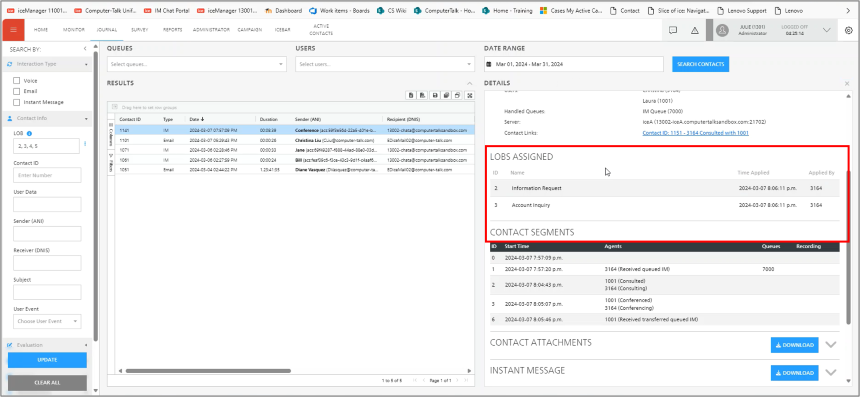
Il y a aussi une nouvelle colonne LOB dans la grille des résultats de recherche. Lorsque vous cliquez sur un contact, vous pouvez voir qu'il y a une nouvelle section LOB avec des informations sur le code attribué, le nom du code LOB, l'heure à laquelle il a été appliqué et l'ID d'agent de la personne qui a appliqué le code.
Recherche dans le journal – paramètre de filtrage des codes LOB
Un nouveau paramètre dans les groupes de configuration affecte les informations affichées dans iceJournal.
Étapes:
Accédez aux paramètres dans iceManager.
Sous Administration, à gauche, sélectionnez Groupes de configuration.
Sélectionnez l'onglet LOB.
Recherche dans le journal – Filtrer les codes LOB
Activé – le filtre du journal n'affichera que les LOB attribués aux utilisateurs
Désactivé – affichera tous les LOB, y compris ceux qui sont désactivés et ceux qui ne sont pas attribués aux utilisateurs.
Améliorations du journal – exportation
Analysez plus en profondeur les interactions grâce aux exportations CSV d'iceJournal.
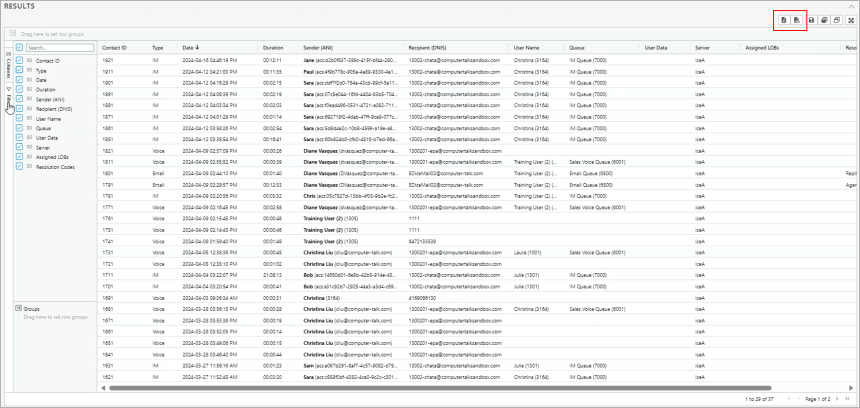
iceJournal a été mis à jour pour utiliser les mêmes grilles qu'iceMonitor. Avant d'exporter vos résultats, vous voudrez configurer votre grille de recherche. Vous pouvez supprimer des colonnes et filtrer des lignes en fonction des informations que vous souhaitez voir affichées dans l'exportation.
Nous avons deux nouveaux boutons en haut, avec deux options : exporter vers Excel et exporter vers CSV.
L'exportation dépendra de la disposition de votre grille. Elle n'affichera que les contacts et les colonnes visibles dans votre grille.
Améliorations des courriels – participants supplémentaires
Permettez aux agents et aux clients d'ajouter des destinataires supplémentaires aux courriels dans les champs À ou CC pour une visibilité accrue ou des informations supplémentaires.
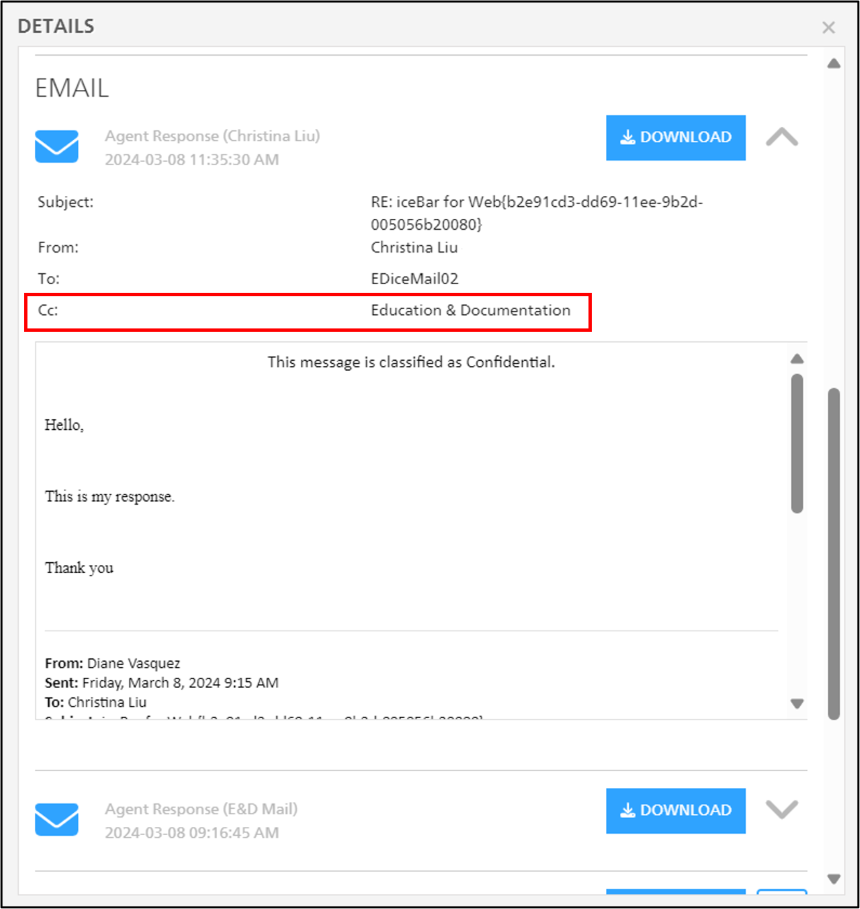
Avec ice 13, il y a la prise en charge de plusieurs destinataires dans les champs À et CC. La gestion des courriels du point de vue de l'agent est en grande partie la même, mais si le client a ajouté un participant supplémentaire, ice pourra suivre et conserver cette information lorsque l'agent répondra.
De même, si l'agent a inclus un expert en la matière dans la réponse, cela sera suivi par ice.
Enregistrement d'écran en mode post-appel
Enfin, nous aborderons l'enregistrement d'écran en mode post-appel.
Si l'enregistrement d'écran est activé, vous avez également la possibilité de continuer l'enregistrement lorsque l'agent est en mode post-appel. Cela vous permet de vous assurer que les agents suivent les procédures standard pendant le post-appel en prolongeant l'enregistrement d'écran.
Étapes pour activer l'enregistrement d'écran en mode post-appel:
Accédez aux paramètres dans iceManager.
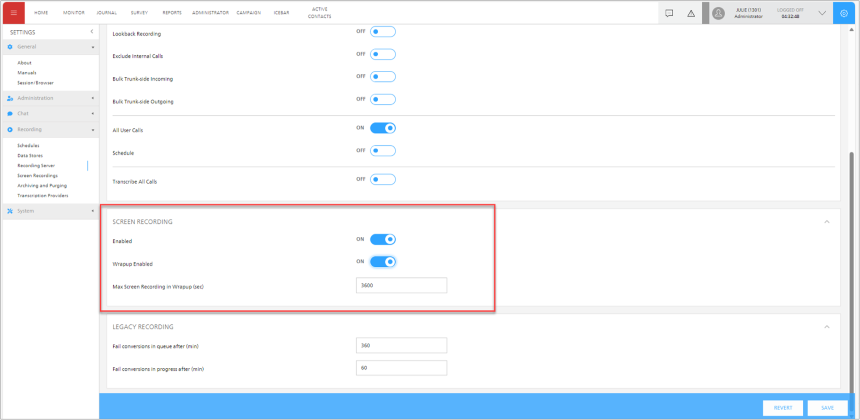
Sous Enregistrement, à gauche, sélectionnez Serveur d'enregistrement, à gauche.
Sous Enregistrement d'écran, sélectionnez Activer le post-appel pour activer l'enregistrement d'écran en mode post-appel.
Sous Enregistrement d'écran max. en post-appel (sec), vous pouvez configurer la durée du post-appel. La valeur est en secondes et la valeur par défaut est de 1 heure (3600 secondes).
Conclusion
ComputerTalk est ravi de sa dernière version d'ice Contact Center. Avec ice 13, vous pourrez:
Partager facilement des fichiers, des documents et des images avec les clients.
Trouvez facilement l'interaction que vous cherchez en recherchant un code LOB précis dans iceJournal.
Analysez davantage les interactions grâce aux exportations CSV d'iceJournal.
Permettez aux agents et aux clients d'ajouter des destinataires supplémentaires aux courriels dans les champs À ou CC pour une visibilité accrue ou des informations supplémentaires.
Assurez-vous que les agents suivent les procédures standard pendant la post-interaction en prolongeant l'enregistrement d'écran pour qu'il se poursuive pendant l'état de post-interaction.
Si vous souhaitez implémenter ou mettre à niveau vers ice Contact Center 13, communiquez avec votre responsable de compte ou avec nous ici.
Abonnez-vous à notre infolettre
Merci d'avoir communiqué avec ComputerTalk !
Nous prendrons contact avec vous sous peu. Il y a aussi un bouton de discussion maintenant dans le coin inférieur droit du site Web, si vous souhaitez nous parler immédiatement.
Oups! Une erreur est survenue lors de l'envoi du formulaire.
%20-%20Google%20Ads.png)